More in
Chat Funnel Setup
WhatsApp Business API Integration With Your CRM (Working Setup)
Apr 18, 2026
Click-to-WhatsApp Ad Campaigns: From Setup to First Conversion
Apr 18, 2026
Conversational Qualification: Questions That Don't Annoy Buyers
Apr 18, 2026
Designing a Chat Funnel for High-Ticket B2B (Not E-Commerce)
Apr 18, 2026
Configuring Fallback Flows When AI Agents Fail
Apr 18, 2026
Building a 24/7 Chat Funnel Without Burning Out Your Team
Apr 18, 2026
Chat Funnel A/B Testing: What to Test and How
Apr 18, 2026
GDPR-Compliant Chat Funnels for EU Buyers
Apr 18, 2026
Measuring Chat Funnel Performance: The Metrics That Matter
Apr 9, 2026
Lead Routing Automation for Chat-Captured Leads
Apr 7, 2026
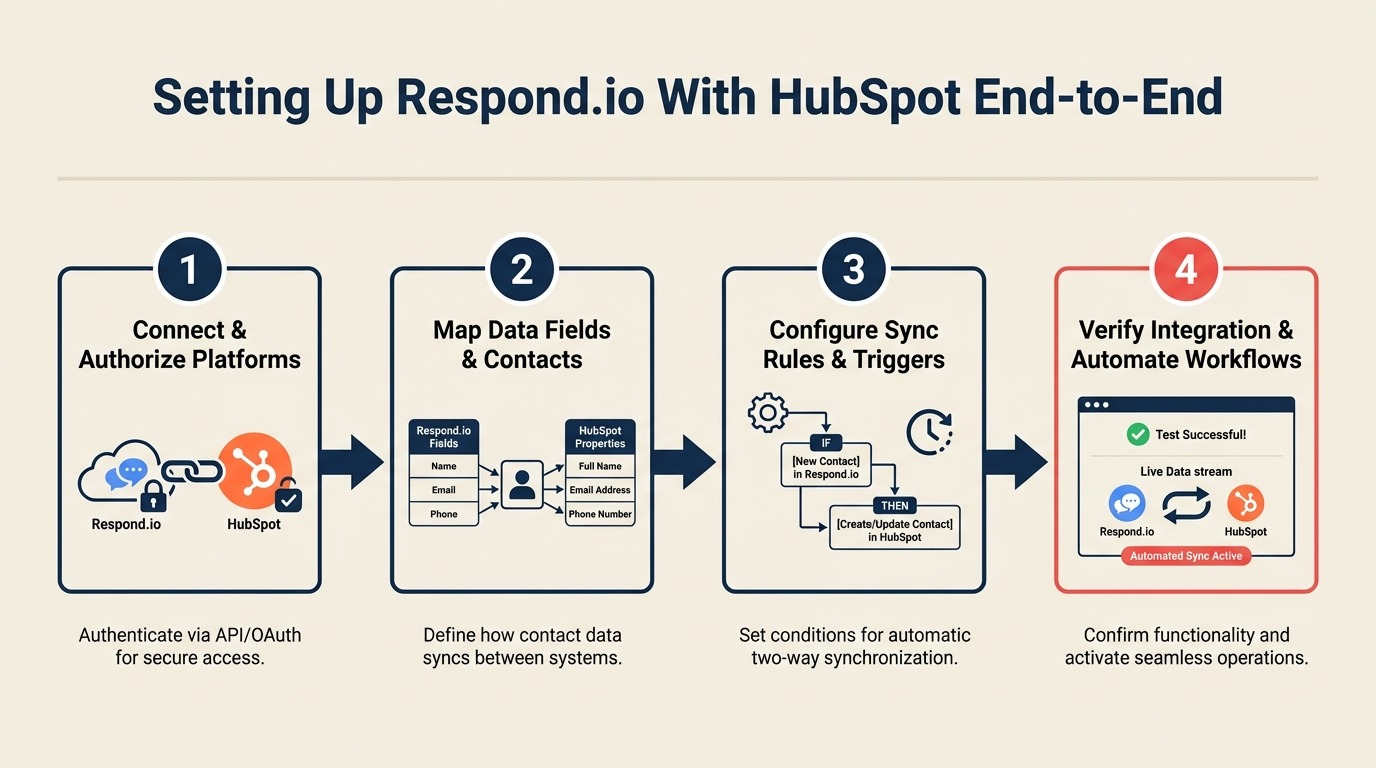
Setting Up Respond.io With HubSpot End-to-End
Turn this article into takeaways for your work.


Each assistant summarizes the article only for you and suggests best practices for your work.
A RevOps team at a growth-stage SaaS company ran Respond.io for 60 days before anyone checked their HubSpot contacts list. When they looked, they found 800 duplicate records, some contacts duplicated 4 or 5 times, with conversation history split across multiple records and no single clean view of the customer. CRM data quality is a persistent problem: Gartner estimates that poor data quality costs organizations an average of $12.9 million per year, with duplicate contact records being one of the most common root causes.
The cause: default Respond.io sync settings create a new HubSpot contact for every conversation, regardless of whether that phone number or email already exists in your CRM. Three settings changes fixed the problem. But by then, the team had already spent 2 days cleaning the database. Deduplication at the point of sync is one of the most overlooked steps in multi-channel lead deduplication workflows. If your Respond.io instance handles conversations from multiple channels, configuring a multi-channel inbox with proper routing rules before enabling HubSpot sync helps ensure each contact is created with consistent source attribution.
This guide covers the integration setup that prevents that scenario, from initial connection through conversation sync, deal creation, and rep assignment, with the specific settings that matter.
Prerequisites
Before you start the integration:
- Respond.io account with at least one connected channel (WhatsApp Business API, Instagram DM, or website chat widget). An account with only the website chat widget and no other channels can still integrate, but the value is highest when WhatsApp is connected.
- HubSpot account with API access enabled. You need at least HubSpot Starter to access the Integrations menu.
- HubSpot Private App token: do not use an API key (HubSpot deprecated these). In HubSpot, go to Settings → Integrations → Private Apps → Create a Private App. Name it "Respond.io Integration" and grant scopes:
crm.objects.contacts.read,crm.objects.contacts.write,crm.objects.deals.write,conversations.read,oauth. Copy the token; you'll need it in Respond.io. HubSpot's Private Apps documentation explains scope selection and token rotation in detail. - Admin access in both platforms: you need admin rights in Respond.io to configure integrations, and either admin or super admin in HubSpot to create custom properties.
Step 1: Connect Respond.io to HubSpot via the native integration
In Respond.io, go to Settings → Integrations → HubSpot. Click Connect.
The OAuth flow will ask you to log in to HubSpot and grant Respond.io access to your portal. Grant access. After OAuth completes, you'll return to Respond.io with a confirmation that the connection is active.
But don't stop there. The default settings after OAuth are not correct for most teams.
On the HubSpot integration settings page in Respond.io, you'll see:
- Sync all contacts: Disable this. You don't want every anonymous website chat visitor synced to HubSpot. Enable contact sync only for conversations where you have an identifier (email or phone).
- Auto-create contacts: Set to "Only for identified contacts" (meaning contacts where at least a phone number or email has been collected).
- Default contact lifecycle stage: Set to "Lead" for new contacts, not "Subscriber." Subscriber is for newsletter opt-ins and will confuse your lifecycle stage reporting.
Step 2: Contact matching rules (this is where duplicates come from)
Respond.io matches a conversation to an existing HubSpot contact using one of three identifiers: email address, phone number, or WhatsApp ID. The order matters.
The default matching priority is: Email → Phone → WhatsApp ID.
For a WhatsApp-heavy funnel, this is backward. Most WhatsApp conversations don't have an email address at the start. You collect it later in the qualification flow. If Respond.io tries to match by email first and doesn't find one, it creates a new contact. Then when the email comes in later, it creates another contact matched by email. Result: two contacts for the same person.
Change the matching priority to: Phone → WhatsApp ID → Email.
WhatsApp numbers are tied to phone numbers, so this match is reliable from the first message. Update this in Settings → Integrations → HubSpot → Contact Matching. Respond.io's HubSpot integration documentation details the full matching logic and deduplication settings available in the integration panel.
Also enable Deduplication on match: when Respond.io finds an existing HubSpot contact matching the phone number, it updates the record rather than creating a new one. This single setting prevents about 70% of duplicate creation. Wikipedia's article on data deduplication explains the matching algorithms behind deduplication logic, particularly relevant for understanding why phone-first matching is more reliable than email-first for messaging-channel contacts.
Step 3: Field mapping
In Respond.io's HubSpot integration settings, go to the Field Mapping tab. This controls which Respond.io contact attributes sync to which HubSpot contact properties.
Default fields that sync well out of the box: First Name, Last Name, Email, Phone. But you need to add custom fields to capture chat-specific data that HubSpot's standard properties don't have.
First, create these custom contact properties in HubSpot (Settings → Properties → Create Property):
- Last Chat Channel: single-line text (e.g., WhatsApp, Instagram, Website Chat)
- Chat Qualification Score: number
- Chat Lead Source: single-line text (e.g., Meta Ad, Organic WhatsApp, Website)
- First Contact Date (Chat): date picker
- Qualification Answers: multi-line text
The decisions around which custom fields to create, and how to name them consistently so routing logic doesn't break, are covered in the custom fields guide for CRM implementation.
Then map them in Respond.io:
| Respond.io Field | HubSpot Property |
|---|---|
| First Name | First Name |
| Last Name | Last Name |
| Phone | Phone Number |
| Channel | Last Chat Channel (custom) |
| Contact Source | Chat Lead Source (custom) |
| Created At | First Contact Date (chat) (custom) |
| Custom: Qualification Score | Chat Qualification Score (custom) |
| Tags | (map to HubSpot contact tags if using HubSpot tags) |
The Qualification Score field requires you to set a score in Respond.io workflows (covered in Step 6). For now, create the mapping and leave the scoring logic for after the flow is built.
Step 4: Conversation sync settings
Respond.io can sync conversation messages to the HubSpot contact timeline. This is useful but creates a lot of noise if you sync everything.
The default setting syncs every message, including automated bot messages, system messages, and internal notes. That means a HubSpot contact timeline for an active user might have 50+ timeline entries per week, making it nearly impossible for a rep to get a quick picture of where things stand.
In Settings → Integrations → HubSpot → Conversation Sync, change:
- Sync conversations: Yes, but only for conversations with status = "Resolved" or where a human has been assigned (not pure bot conversations)
- Sync bot messages: No
- Sync internal notes: No (these are for your team, not the CRM record)
- Sync attachments: Yes, but only images and documents (not emoji reactions or voice notes)
A cleaner rule of thumb: sync a conversation summary to HubSpot when the conversation reaches a terminal state (qualified, disqualified, or handed off). One timeline entry with a summary is more useful than 30 entries showing every bot message.
Step 5: Deal creation automation
When a lead qualifies in your Respond.io flow (chatbot completes qualification), you want a HubSpot Deal created automatically, not manually by a rep.
In Respond.io, go to Workflows → New Workflow. Set the trigger to: Contact Attribute Changed → Qualification Score → is greater than → [your threshold].
Actions in the workflow:
- Update contact: Set Lifecycle Stage = MQL, Lead Status = New
- Create HubSpot Deal: Title = "Chat Lead: [Contact First Name]", Pipeline = [your sales pipeline], Stage = "New Lead", Amount = leave blank, Owner = [round-robin assignment]
- Assign conversation: Assign the Respond.io conversation to the rep who was assigned the deal (requires a step to look up the deal owner; use the HubSpot lookup action if your plan supports it)
- Send rep notification: Slack or email with deal link and conversation link
The workflow logic in plain English: when a contact scores above your qualification threshold, automatically move them to MQL, create a pipeline deal, assign the deal to a rep, and notify that rep. The rep doesn't manually create anything. For teams building out a broader CRM automation layer, CRM workflow automation covers the patterns for deal creation, lifecycle transitions, and rep notifications across different CRM platforms. Once the deal is created and the rep is notified, the next critical step is the chatbot-to-rep handoff, which covers how to structure the context card and first-message SLA so the lead actually converts to a meeting.
Step 6: Rep assignment (matching Respond.io to HubSpot)
The integration doesn't automatically mirror HubSpot contact owners to Respond.io conversation assignees. You have to configure this.
Two approaches:
Option A (Respond.io to HubSpot): When a rep is assigned a conversation in Respond.io, sync that assignment to HubSpot Contact Owner. Set this up in Settings → Integrations → HubSpot → Sync Assignment. Enable "Sync assignee to HubSpot contact owner."
Option B (HubSpot to Respond.io): When a HubSpot Contact Owner is set or changed, update the Respond.io conversation assignee. This requires a HubSpot workflow that calls the Respond.io API. Useful if your team assigns deals in HubSpot first.
For most teams, Option A is simpler. Reps work in Respond.io for chat; HubSpot reflects that assignment.
For unassigned contacts (new leads with no rep yet), configure round-robin in Respond.io: Settings → Teams → [Your Sales Team] → Assignment → Round Robin. This distributes new conversations evenly across available reps.
Step 7: Testing (5 scenarios to run before full sync)
Run these test scenarios before enabling the integration for your full contact list:
| Test Scenario | How to Run | Expected Outcome |
|---|---|---|
| New contact with phone only | Send a WhatsApp message from a number not in HubSpot | New HubSpot contact created with phone; no duplicate |
| Existing contact messages again | Use the same number from test 1 | Existing HubSpot contact updated, not duplicated |
| Qualification flow completes | Walk through your full bot flow as a hot lead | MQL lifecycle stage set; deal created in pipeline; rep notified |
| Contact with both phone and email | Complete flow and collect email | Single contact with both fields; no second contact for email |
| Rep assigns conversation | Assign the test conversation to a rep in Respond.io | HubSpot contact owner updates to that rep |
Check HubSpot after each test before moving to the next. You're looking for: correct lifecycle stages, no duplicates, correct field values, and timeline entries only where you configured them.
Step 8: Running the first real sync
Don't enable sync for all contacts at once. Start with a controlled group:
- In Respond.io, filter contacts by tag = "Test" or by a date range (e.g., conversations from yesterday only)
- Enable sync for only this filtered group
- Check HubSpot after 30 minutes. Verify records, check for duplicates, confirm field values.
- If clean, expand the sync to the last 7 days of conversations
- Run another audit. Pull a HubSpot report for contacts created in the last 7 days with source = "Respond.io" and spot-check 20 records.
Only after two clean audits should you enable sync for all contacts and all new conversations.
Common pitfalls
Syncing all contacts instead of only identified ones. Anonymous website chat visitors who never gave their name, phone, or email will create blank HubSpot contacts with no usable data. Set sync to identified contacts only.
Not setting a matching priority. The default email-first matching causes duplicates for WhatsApp contacts who provide email later in the flow. Switch to phone-first matching before enabling full sync.
Conversation sync without a filter. Syncing every bot message to HubSpot timelines buries the contacts in noise. Use the "qualified conversations only" filter.
HubSpot Private App token expiry. Private App tokens don't expire, but if someone revokes the app or the integration is reconnected with a new token, the sync breaks silently. No errors appear in Respond.io. Contacts just stop syncing. Set a monthly calendar reminder to verify the integration status in Respond.io's integration settings panel. The OAuth 2.0 security best practices guide from IETF covers token lifecycle management principles, including detection of silent token failures, the same class of problem that causes broken CRM sync states.
What to do next
Run a 50-contact test sync using conversations from the past week. Check for duplicates in HubSpot by running a Contact report filtered by "Create Date = last 7 days AND Source = Respond.io" and scanning for records with duplicate phone numbers.
Once the test is clean, enable full sync and move on to building your rep assignment routing rules.
Learn More

Co-Founder, Rework.com
On this page
- Prerequisites
- Step 1: Connect Respond.io to HubSpot via the native integration
- Step 2: Contact matching rules (this is where duplicates come from)
- Step 3: Field mapping
- Step 4: Conversation sync settings
- Step 5: Deal creation automation
- Step 6: Rep assignment (matching Respond.io to HubSpot)
- Step 7: Testing (5 scenarios to run before full sync)
- Step 8: Running the first real sync
- Common pitfalls
- What to do next
- Learn More